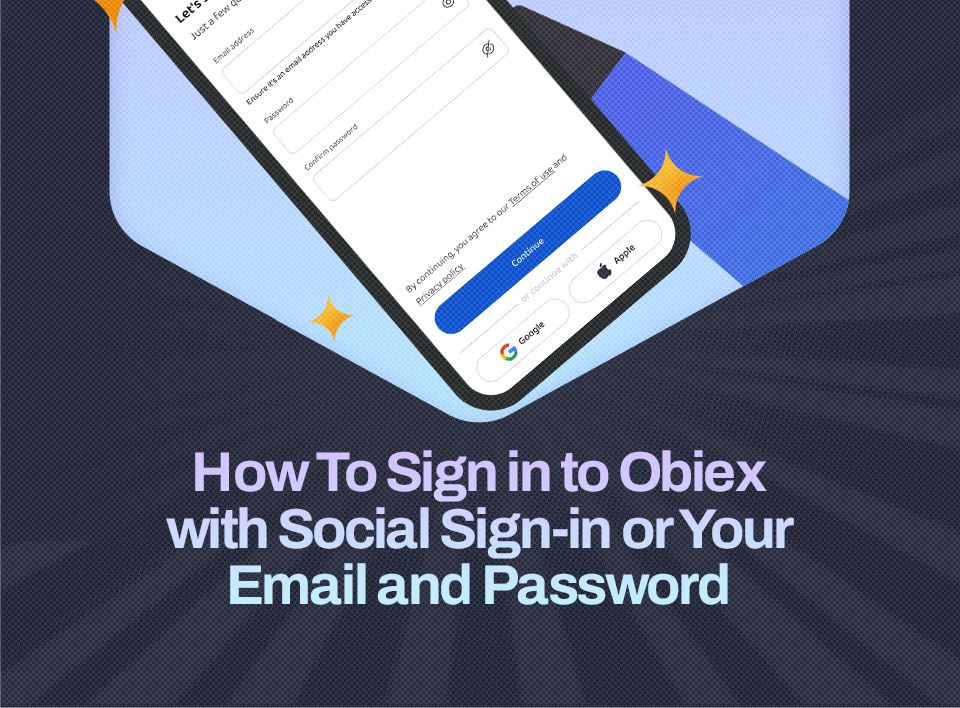
Obiex gives you two simple ways to sign in:
1. Social Sign-In
This allows you to log in using:
- Apple
You don’t need to remember a separate email login at first. Your Google or Apple account verifies you.
2. Email and Password
This is the regular method where you:
- Enter your email
- Enter your password
This is useful if you prefer full control over your login details.
How To Sign In Using Social Sign-In (Google or Apple)
Step 1: Open the Obiex App
Start by opening the Obiex app on your phone or visiting the Obiex website on your browser.
On the home screen, tap or click on “Sign In.”
Step 2: Choose Social Sign-In
You will see options like:
- Continue with Google
- Continue with Apple
Select the one you prefer (or the available one).
If you use an Android device, you will only have the Google option.If you use an iPhone, Apple sign-in may be more convenient.
Step 3: Select Your Account
Once you click Google or Apple:
- A pop-up will appear
- You will be asked to choose your account
Select the correct email linked to your Google or Apple account.
Step 4: Allow Verification
After selecting your account:
- Google or Apple will securely confirm your identity
- You may be asked to enter your phone password, fingerprint, or Face ID
This step is important because it proves that you are the real owner of the account.
Step 5: Automatic Redirect to Obiex
Once verification is complete:
- You will be automatically redirected back to Obiex
- Your account will either be created instantly (if it’s your first time), or
- You will be logged in immediately
You don’t need to fill long forms. Everything is done for you.
Step 6: Create a Password (First-Time Users Only)
If this is your first time using social sign-in on Obiex, you will be asked to:
- Create a secure password
Even though you signed in with Google or Apple, this password adds an extra layer of protection to your account.
Step 7: Add a Referrer (Optional)
You may see an option to:
- Enter a referral code
This is optional, but if you have one, you can enter it to enjoy possible rewards.
Step 8: Set Your Passcode
Next, you will set a passcode.
This is a short code (usually 4–6 digits) that:
- Helps you unlock the app quickly
- Adds another level of security
Step 9: Enable Biometric Login
For even faster access, you can enable:
- Fingerprint login
- Face ID
This means you won’t need to type your password every time you open the app.
How To Sign In Using Your Email and Password
Step 1: Open the Obiex App or Website
Open the Obiex app on your phone or go to the Obiex website on your browser.
On the main screen, click or tap on “Sign In.”
Step 2: Enter Your Email Address
You will see a field asking for your email.
- Type the exact email address you used when creating your Obiex account
- Make sure there are no typing errors
👉 Even a small mistake (like missing a letter) will prevent you from signing in.
Step 3: Enter Your Password
Next, enter your password.
- Type it carefully
- Check for uppercase and lowercase letters
- Make sure there are no extra spaces
👉 If your password is incorrect, you will not be able to log in.
Step 4: Click “Continue” or “Sign In”
After entering your details:
- Click “Continue” or “Sign In”
If your email and password are correct, you will move to the next step.
Step 5: Enter Your Passcode (If Enabled)
For extra security, Obiex may ask for your passcode.
- This is a short 4–6 digit code you created earlier
- Enter it correctly to proceed
Step 6: Access Your Dashboard
Once your details are verified:
- You will be logged into your account
- You can now access all features like sending money, buying crypto, and more
Are you ready to unlock access to a great trading experience?
👉 Sign in to your Obiex app now to get full access.
FAQs
1. Can I use both social sign-in and email for the same account?
Yes, but it depends on how your account was created. Some accounts allow linking both methods.
2. What happens if I forget my password?
Click “Forgot Password” and follow the steps to reset it.
3. Is social sign-in safe?
Yes. Google and Apple handle your authentication securely.
4. Do I need the internet to sign in?
Yes. You need an active internet connection.
5. What is a passcode on Obiex?
It is a short code used to quickly unlock your account.
6. Can I change my sign-in method later?
Yes, you can update your settings after logging in.
7. Why am I not receiving verification emails?
Check your spam folder or confirm your email is correct.
8. What should I do if my account is locked?
Contact Obiex support for assistance.
9. Can I use biometric login instead of a password?
Biometric login works as a quick access method, but you still need a password initially.
10. Is it safe to stay signed in on my device?
Yes, if it is your personal device and properly secured.
Disclaimer: This article was written to provide guidance and understanding. It is not an exhaustive article and should not be taken as financial advice. Obiex will not be held liable for your investment decisions.